Showing posts with label AltOS. Show all posts

Monday, May 6

I built a book scanner!

My Better Half and I likes books - like them so much that we are running out of space in which to put them, not to mention the hardship of packing five books for a two week vacation. So we - well, mostly she - hatched a plan to get our book digitized and readable on either our ebook readers or on our tablets.

Digitizing books can be tricky though - the easy solution would be to hack the spines off and feed them through a document scanner, but there is two major issues with that plan: First, a fair number of our books are hard-to-impossible to get. Second, that's barbarism and just not something you do to books. A different approach was clearly needed.

A dedicated bookscanner that don't require you to mutilate your books are quite costly - if you want one of those you better be prepared to put a second mortgage on your home - but luckily there are dedicated tinkerers on the Internet that are more than willing to share their home-brewed designs. One such group is over at DIYbookscanner.org, who both have as a goal to put a book scanner in every hackerspace, and have come up with a simple, rugged and more or less fool proof design. One of the guys from there lives in Europe, and have started a business (DIYbookscanner.eu) selling kits with almost all the bits you'll need to build one.

As these things often do, it took longer from the box arrived until it was ready than I had planned for - part was down to timing (it arrived just before I had to be out of town for a few weeks) and part of it boils down to me not being quite as good with Linux as I had led myself to believe - more on that later.

The hardware for the kit is several kilograms of CNCed Baltic plywood - painted and ready to go - along with a small heap of screws and other odds and ends.The electronics consists of two Canon PowerShot A2200 (came with the kir), and one of my old Eee 701 running Ubuntu 12.04. On the Eee I run a sh-script which talks to the chdk-firmware in the cameras; it handles zooming in, setting the ISO, taking pictures, downloading to a SD card in the Eee and deleting the photos off the cameras.


One thing that wasn't in the kit was a good handle - it came with one that I consider unsuitable for our use. However, a threaded rod, some nuts and washers, and a bike handlebar fixed that...


Then it was just a matter of mounting the light, the cameras and installing the software on the old Eee.

Yeah, about that...

The Eee is an old little Linux Netbook, so the first hurdle was installing Ubunto 12.04 on it and then uninstalling pretty much every app that came with it. Once that was done I could download and run the various scripts that controls the cameras - only to find that they would not zoom in as they should.

Headscratching... lots of it, both for me and the guy I bought the kit from (a very likeable guy, and very, very helpful).

My Better Half and I was discussing buying a new computer just for scanning (either Linux or Windows - software exists for both), when i out of desperation decided to reorder two steps in the script. And while it shouldn't make no never-mind, it did fix it - the cameras zoomed in happily enough and snapped away.


The Eee only handles the camera triggering script and the downloading from the camera. Post-processing is done on our desktops, using a very nice (and free) piece of software called ScanTailor, which is custom made for this sort of things. The output from ScanTailor can be OCRed to produce searchable text, and/or turned into a PDF or other format ebook.

Output from camera (reduced size):


After processing (reduced size and quality for uploading):


So there you have it - one homebuilt and working bookscanner!

PS: Some build these with a mechanical trigger instead of a software trigger, but the downside then is that you'll have to unmount the cameras each time.

Sunday, August 8

PuppEee v1.0 released!

And it's a beuty!

A couple of broken tools removed, but nothing broken in the process as far as I can see. For the most part, my review of RC2 still holds - only more so. And I'm not sure what Jemimah did, but it seems that my battery life while watching movies has improved considerable... I just finished watching two 90 minutes movies back to back on my big battery, and I still are showing 60% left.

I've been waffling a bit lately between using the Netbook Launcher desktop versus the more standard Rox - after I've noticed that I launch most software from the 'start menu' anyway.. speedwise they both feels equally snappy.

While PuppEee may not take over as my primary OS on my Eee, this release is making a brilliant attempt to do so - who knows what I'll do in the future?

Tuesday, July 27

PuppEee RC8 posted

While some of us have been slacking off in the summer, Jemimah has worked on PuppEee Relase Candidate 8. I've downloaded and installed it (painless - it easily accepted my old savefiles) and have messed around for a couple of hours with it.

So far, I can't find anything that is broken, or  not working as it should. I'll report back when I given it a more througout run - or the 'real deal' is released. In the meantime, go grab RC8 - it's worth the download.

Thursday, July 1

PuppEee 4.3X Release Candidate 7

Jemimah has been hard at work while the rest of us have hardly been working, and has  put out RC7. So far I have detected no real (ie; visible to me) changes from RC6, apart from the updated Chrome browser. The minor bug in the boot script that caused me some issues with RC6 seems to be fixed - to be fair she put a patch out for RC6 as well, so it ended up being a very, very minor issue anyway.

An definite upside was how it recognised and loaded my save file reasonable seamlessly - just taking a couple of minutes to update the file system. All the add-ons I had under FireFox still works, as do Xchat.

More review when I had time to use it more.

Tuesday, May 25

PuppEee 4.3X RC2

It happened again... just as I was about to write up a review of the latest beta, the first release candidate rolled out. And then, as I got halfway through the review, the second release candidate came out. The third one is probably just around the corner... It's amazing how quickly the developer of this nice little distro works.

Overall, I'm (still) extremely impressed by how much have been shoehorned into such a small package. Not only does PuppEee give you a full distro in a bit more than 120Mb, but it's stuffed to the gills with tools for browsing, social networking, productivity and much, much more.

I really like the fact that the last beta and the RC gives you the option to pick and choose between not only x-servers, but also windows managers and desktops. Right now I'm running it with LxLaucher on top of FLWM under Xvesa - about as lightweight and usable as I need. And if I want to switch desktop, windows manager or even X-server, I don't even have to reboot any more. All that's needed is to restart the X-server and you're home free. Most impressive.

The selection of internet aware apps should cover most users needs well - in addition to the obvious browser and email client (Chrome and Claws, respectively), PuppEee offers a website mirroring tool, a FTP client, pidgin and much more - pretty much anything a modern internet user can need.

Productivity tools are also well catered for, with AbiWord and Gnumeric as the two big office tools on top of a host of text editors and other applications. For those in a more artistic line of work, a full range of image editors, managers and viewers - a very nice change from RC1 to RC2 is the added ability to view djvu-files. It's not like I have a lot of them, but more than a few I had been limited to viewing at my desktop until now. Two small applets that will come in handy for me is the Expense Tracker and/or the HomeBank finance management applet - either should be useful in keeping track of my money when I go to Sudan for a year.

But all is not work - the selection of games and multimedia software is pretty staggering by itself - a nice range from solitaire to arcade, and enough players, editors and mixers to keep a video freak and an audiophile happy. Me? I'll settle for a nice game of Space Invaders and watching some movies, thank you.

And don't even mention utilities - this distro is packed full. One I really like is Startmount; it lets you specify which drives should be mounted at start up, and what (if any) software that should be opened as you boot.

Now, a full, or even partial, list of all the installed software would take too long in this post (not to say I wont post one later), but for now, lets talk desktops, window managers and x-servers.

The RC2 offers four choices as far as desktops (file managers) goes; ROX Filer (the default) which acts much like any other computer desktop, Netbook Launcer (as far as I know, a tweaked LxLauncher and also my current favourite) which organizes everything into useful tabs for easy access, and PCManFM which I haven't tried. The fourth choice is 'None', which I'm slightly worried about trying... I'm sure it's safe though. PCManFM looks quite interesting, but I've gravitated towards the Netbook Launcher since I like that style on the smaller screen. Although, it may be that I'm just lazy and like getting my software on a silver platter.

For the actual windows management, you'll get three choices - IceWM (the same as the default Xandros uses on my Eee) which acts pretty normal, FLWM (my current favourite) which plays nicer on the small screen by placing the title bar on the left side of the windows) and OpenBox which to me looks very much like IceWM. To me the second choice makes the most sense - on a small widescreen such as the Eee (in particular the 70X series), horizontal real estate is more plentiful than vertical real estate. FLWM lets you conserve the later by using the former.

For the x-server you get the normal choice of two; X-org, which is heavier and more capable, or X-vesa which is lighter and loads faster. Choose the former if you need accelerated graphics or OpenGL, while the later is good if you care about boot times.

Some screen shots:
 This is the Netbook Launcher desktop coupled with FLWM - showing the contents of the Internet tab.

This is the Rox Filer desktop coupled with FLWM - again showing how to get to the Internet applications.

Running the Evice document viewer under FLWM - note the titlebar and max/min/close buttons along the left side of the window.

This is the Netbook Launcher desktop coupled with IceWM - showing the contents of the Internet tab. Note how the bar at the bottom of the screen don't hide under the launcher, eating precious vertical pixels.

This is the Rox Filer desktop coupled with IceWM - again showing how to get to the Internet applications. This is how PuppEee will look out-of-the-box - at least in RC2.

Running the Evice document viewer under IceWM - note the titlebar and max/min/close buttons along the top of the window, eating pixels.

Overall, a very decent little Linux, and well suited for running on your Eee. I'm not sure I can recommend it as the only OS you need, but right now it's of three I boot, and the one I prefer for surfing and other web-work.

Sunday, March 7

Problem with PupEee

I've been playing with the latest beta of PupEee 4.31 for a bit, with the intent to do a 'proper' review, but I have hit a problem.

Or rather, I have not. Apart from a vague desire to replace Pidgin with xChat, there is nothing that don't work as I expect it to. In fact, pretty much everything works better on the small screen of my 4G than I expected.

Booting is fast too, after I switched from Xorg to Xvesa my Eee now boots PupEee of a slooow SD card in about 30 seconds, and only takes 8-10 seconds after that to have a stable connection to my home WiFi - both is actually ever so slightly faster than the Xandros install I have on the SSD!

The offered suite of software may not be engulfing enough for everyones taste, but it covers the basics and covers it well. Connectivity is well covered by Chrome for web, Claw for email and Pidgin for IM. Creativity and office work is taken care of by AbiWord, Gnumeric, mtPaint and InkScapeLite. For those wanting to plan ahead there is the Osmo personal organiser, and if all you wish to do is to lay back and watch a movie gxine seems to handle pretty much every codec I've tried so far.

And that's just the stuff on the desktop - once you start going through the menu the choices simply multiply. Not bad at all for a distro weighting in at about 100 Mb.

Monday, March 1

PupEee 4.31 Beta 6

Go grab it - just replace the old files on your USB stick or SD card, delete eee-435.sfs and boot up.
First boot takes a little longer than normal, but the second one is nice and quick again. Not much has changed, according to post #109 in this thread, but it looks a little slicker and nothing seems broken.

Saturday, February 13

PupEee 4.31 Beta 5

I've been running the latest beta of PupEee 4.31 for two days now, and I am impressed.

In addition to cleaning out the last leftovers from SeaMonkey, the most noticeable and useful change is the fact that eee-control now is accessible from a quick launch icon on the task bar. One stop shopping for most eee-specific settings, including over-clocking if you like to burn your battery faster.

Other useful additions include a battery meter and CPU temperature gauge on the task bar... almost makes my install of pwidgets redundant, but the eye candy is soo pretty...

Overall the most important improvement of PupEee 4.32 over previous versions is the change to Chrome and pwireless2 - those two changes alone is worth the trouble of upgrading.

PupEee 4.31 is discussed in this thread at EeeUser.com, has it's own forum here, and can be downloaded from this site.
Above: Beta 5, with eee-control, powertop and chrome running

Below: The various functions on the task bar


Monday, February 8

More PupEee stuff

One of the things I discovered that I really like under PupEee is the multiple workspaces - it's almost as good as having a multi-monitor setup. In one workspace i can have my browser and IM running, in the other I can open AbiWord and get some typing done - all without cluttering the narrow task bar too much. And I can simply change between the two with a simple key-combo.

Never saw the utility of running multiple work spaces when I'm fiddling with Linux on my desktop, but on a pocket-able computer with a small screen it's a godsend.

Sunday, February 7

PupEee 4.31 Beta 3

Recently i find that I do more and more of my 'serious' work under PupEee - PupEee 4.31 beta 3 to be exact. There is a number of reasons for this, firstly the rather impressive boot time (30 sec from I pick the SD card in the boot menu until the desktop is usable, 41 sec until my WiFi is connected). The change from SeaMonkey to Chrome as the browser certainly helps too - SM never felt like a modern browser to me, and since I don't download mail to my Eee the loss of the built in email client is no loss at all.

I also like that 4.31 - or at least the betas - is not downloaded as ISO files, but rather as separate files. This means that updating the beta is as simple as replacing one squash file (.sfs) with a new one and the distro is updated.

Pretty much the only addition I've done to the basic distro is adding pwidgets - useful little widgets sitting along the side of the screen giving me the basic info on the status of my Eee.

PupEee in a very '60 style

A somewhat calmer PupEee

Monday, January 18

Not much has happened

Not too much has happened since the last post - my Eee simply works as it should.

The RunCore SSD I won is working wonderfully - from a subjective point of view it serves up files faster, and it consumes less power while doing it as well. For now it works as my repository of movies while I'm at work, but Really Soon Now™ I'll try to put a WinXP install on it - hopefully it'll be somewhat faster than the USB stick I'm currently running WinXP from.

The other piece of news is that I've updated from PupEee 4.2 to the 4.3 Beta - not much have changed apart from the connection manager, and that works much, much better than it used to. It also seems to boot somewhat faster, but I have no hard numbers to back that up. Next step will be to install an up to date FireFox on it and I'm set.

Saturday, September 19

Three weeks abroad with my Eee

For the second time this year (last time was in May), I have spent three weeks away from my desktop - away from home even - with my trusty Eee 701 as my primary (and only) computer.

The experience was about 99.9% positive - the only let down was when I was unable to connect to the free WiFi at Philadelphia International Airport since their malformed verification page expected people to use Internet Explorer. In other places - like at various Bob Evans restaurants and fast food joints - I got around that by using Konqueror, but at PHL that trick just didn't work.

Peoples reaction to the 701 is quite amazing, considering the fact that it's two years since it was released. People came up to me to ask questions and marvel at how small, portable and easy to use it was. An eye-opener for me is the people who admitted to owning a netbook, but found theirs too big to be truly portable... unlike mine.

As before, I find the screen size and resolution to suit my needs perfectly, with just a handful of sites requiring horizontal scrolling. It's also just the right size for watching movies on while on long haul flights. Just fold down the tiny table, plug in headphones, and enjoy the movie of your choice; I brought a nice selection of old SciFi B-movies.

The keyboard is, as before, excellent for both short term and long term typing. Bashing out an email or working on large documents is a breeze, the only niggle is the lack of 'proper' page up and down keys.

The WiFi worked almost too well - picking up free hotspots all over the place as well as a couple of poorly secured networks. Interestingly enough, I saw more hotspots with my Eee running Xandros than others did with large laptops running XP...

On this trip I got to appreciate the universal charger - while I usually have some juicy 230VAC in the outlets I use, I had to charge my Eee from puny 110VAC outlets. It did take more time to fully top off my 6600mAh batteries, but two of those keeps me going all day so it wasn't a big problem.

I also found a near perfect 'go-bag' for my Eee and other sundry items; the Maxpedition Jumbo Versipack. It holds my Eee, the charger, a spare battery, a couple of books, keys, papers, Mp3-player and more... just the thing I need for my next big trip abroad.

And I found yet another use for PupEee - amaze people by booting into a different OS from a tiny card... Kind of a silly trick, but one that shows off the versatility of the Eee quite well.

As for downsides to the Eee... well, the only thing I can think of that I missed is a built in CFcard reader - but blame that on me having an old digital camera and forgetting my USB cable.


And since no post is complete without pictures, here is a fuzzy caterpillar I photographed while travelling.

Saturday, August 15

How to shave five seonds of PupEees boot time

And in less time than i use to write this post even!

It occurred to me that PupEee waits 8 seconds at bootup, in cause I want to issue boot commands. That is a long time... well, not really, but it's longer than I need. So I deided to see if I could shorten it.

If you navigate to /mnt/home (this is where your PupEee lives), you'll find the file syslinux.cfg - open this with a text editor. Find this line:
timeout 80

and change it so it reads:
timeout 30


Congratulations, you have taken five seconds of the boot time off!

You probably want to open the file boot.msg in a text editor as well and change the text to reflect the shorter time you got to enter boot options, just in case you forgets.

PupEee now boots in 53 seconds on my 701.

Wednesday, August 5

Best Linux for (fill in blank)

Sometimes someone over at the EeeUser forums will ask along the lines of "Hey, whats the best Linux for my Eee?"

Off course, there is no correct answer - it all depends on what they want to do and what their needs are. However, I will summarise my replies to all those questions here:

The Xandros it possible shipped with? There is an unofficial upgrade avilable for it as well these days.

I have really good experiences with PupEee - a puplet based on Puppy 4.2 with all the drivers for the 70X and 900 series Eees ready loaded. It simply works as advertised, right out of the box.

Breeezy is an even more lightweight puplet for the 70Xs and 900s - I got good experiences with that as well, but like the more polished look and feel of PupEee.

Lately I've been having some fun with BrowserLinux (nee BrowserPuppy) - an OS with no frills and no thrills that has the drivers for the older Eees preloaded. If all you do is surfing the web, you can do a lot worse than looking at this 69Mb distro.


Off course, there are many more - even more than what that link mentions.

This blogpost may be added to in the future as I experiment - there are more distros out there I want to try out; Easy Peasy, possible eeebuntu, maybe firefly once they are out of beta. Got to love the Live Distros these days =)

Tuesday, July 28

Adding OpenOffice to PupEee

Inspired by a fellow user at the EeeUser forums, I decided to have a go at adding OpenOffice 2.4 to my PupEee install.

Downloaded a squash file with OpenOffice 2.4 from DokuPuppy - at 168.41 Mb it was larger than PupEee, but smaller than OO3.0 by a comfortable margin. Saved it to the same partition on my SD card as PupEee and the main puppy squash file lives on - so far, so good. Download wasn't fast - about 10 minutes, even on a beefy line.

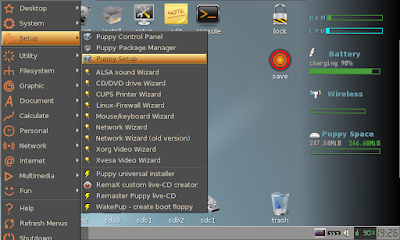
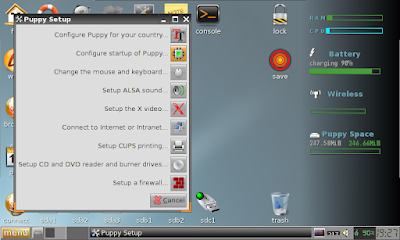
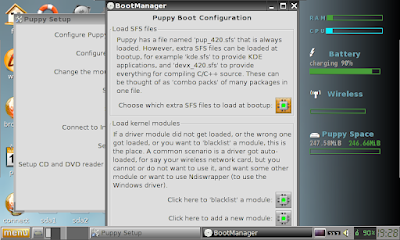
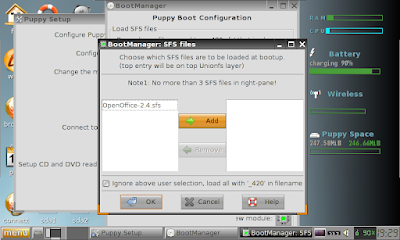
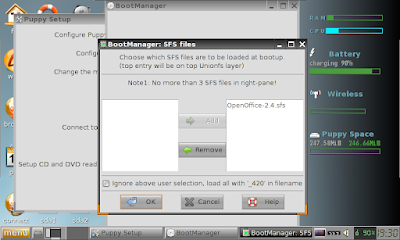
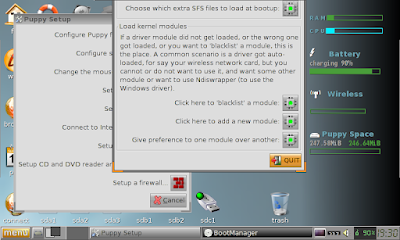
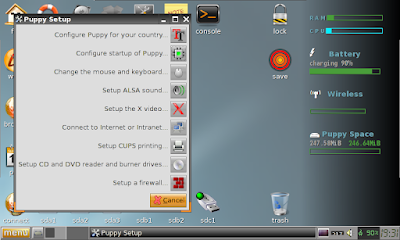
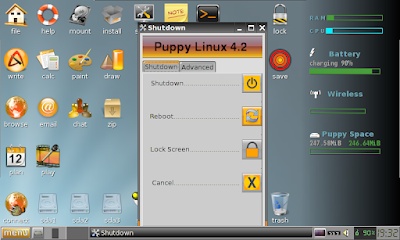
The process to add the squash file to the layered file system was simple enough - the images says it all really.


Select Menu, Setup, Puppy Setup

Configure startup of Puppy

Choose which extra SFS files to load at bootup

Add the OpenOffice squash file

Squash file added

Exit the startup configurator gracefully

Same with the Puppy Setup

And head to a reboot of PupEee!

A reboot (slower than normal, since the layered filesystem had to be rebuilt) later, we're in action. Or rather, wasn't in action.

As they say; Bugger!

But, nil desperandum, or something like that... If at first you dont succeed, find someone to blame... in my cause, must be somethign wrong with the squashfile...

A new download, this time of 2.4.1 from this link (from the same site as the 'pure 2.4) and we're back in business. The process is the same, so I won't document it again (I spent more time taking screen shots than i did doing each step=.


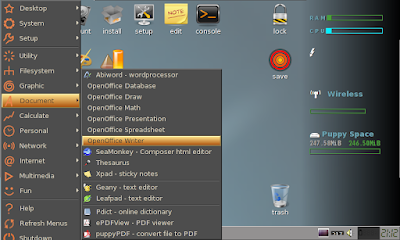
Success! As you can see they are all there in the menu!

Sunday, April 19

Over/underclocking - the retest

Realising that my previous test may have been somewhat 'unfair', in that it hit the CPU frequently, I came up with a revised test to show battery life under 'light browsing'.

Input conditions were simple; WiFi on, minimum brightness, and SeaMonkey pointing at a website that auto updates the page. This should simulate - to some extent - light surfing.

Results:
900MHz: 2h37m
630MHz: 3h17M
360MHz: 3h06m

Now these are curious results... especially when compared to the last set. While it shows that overclocking will shave runtime of your battery, it also shows that underclocking to 360MHz will make you loose runtime too.

Perhaps there is a sweet spot one can underclock to to improve battery life under Pupeee, perhaps there isn't. But 360MHz most assuredly is not that sweet spot... perhaps 450MHz would be better? Perhaps it will be just as bad? Could it be that Aus got it right and the lines cross at 630MHz?

More than three hours of runtime on a 5200mAh battery is pretty good, no matter how you look at it. Makes me almost afraid to test with my aftermarked 6600mAh battery... logic dictates that I should get a bit more than four hours out of it.

Friday, April 17

Overclocking and underclocking under Pupeee

Thanks to a very interesting thread on EeeUser.com, I have gotten curious about overclocking (ie; run the CPU at its rated speed of 900MHz) versus the native underclocked speed (630MHz) versus a seriously underclocked speed of 360MHz - in particular the effect it'll may or may not have on the battery life.

Off course, there is no certain way to manually measure runtime - unless you're prepared to sit in front of the Eee with a stopwatch waiting for it to die. But, I remembered reading a review of a large capacity battery that held a clue - a shell script that would create a text file with the time of start, followed by 'touching' the file every so often to update the time stamp.

With the drivers, modules, GUI and script in place, it was time to set some input conditions:
- battery at 100%, running from external power
- brightness 10 notches up from absolute darkest
- no WiFi
- running Abiword with a open document
- running gxine with a looping mp3
- volume muted
Tests were run with a 5200mAh battery, which is a year old by now.


With all this set up, I would open the over-under clock applet and select the clock speed to test. Opening a terminal, I then started the script at the same time as I pulled the charger plug out of the back of my Eee.

Once the Eee has used up all the available juice, it powered down. Then it was a simple matter rebooting on external power and compare the time stamp of the text file with the time recorded in the file.

And now the results:
900MHz: 2h45m
630MHz: 3h00m
360MHz: 2h46m

The reduction in time for overclocking is small seeing as you get a whooping 43% increase in CPU speed. It is worth keeping in mind that these tests isn't the most taxing on the CPU though, even if the CPU bar widget on the right side of the monitor was maxed out the whole time while running at 360MHz.

In short, it seems that underclocking isn't worth it if you're doing tasks that requires the CPU to be working all the time. I'll likely do a second test later to try for less CPU intensive tasks, like surfing.

The other interesting tidbit is that while running under 900MHz, you'll get the same runtime if you do light surfing or are listening to a looping MP3...

Also that free advise is worth what you pay for it, so take my results for what they are worth :)

Thursday, April 9

More Pupeee

The biggest gripe - if you can call it that - I have with Pupeee so far is the included browser. While I do know that SeaMonkey share - at least to some extent - the codebase with FireFox, it is still different enough to take some getting used to. But, I soldier on. Today I managed to find a theme more soothing to the eyes than the old 'Netscape wannabe' look it shipped with, and I have found where to turn off the text under the buttons. And with AdBlockPlus added I am approaching having a usable browser under Pupeee.


Most of the other software just works, something which amazes me to no end seeing as how the whole install would fit - with room to spare - on the hard drive that was in my first desktop: a cavernous 120Mb drive back i '93. These days I frequently plays with images larger than that on my desktop... and most PDFs I download seems to be larger than that as well. Speaking of PDFs, that is the one application that shipped with Pupeee I'm not terrible pleased about. The PDFviewer is too simplistic, and don't work very well for me.


But as you all can see - the screen grab utility works just perfect!

Monday, April 6

New Pupeee

I've been playing around with Breeezy and pupeee 3.02 for a while, and while I've been impressed with the ease of use and speed, there has always been something...

So when Pupeee 4 .2 was linked at EeeUser, I jumped at it.

Installation is as easy as can be;
  • Download and burn the ISO on my desktop.
  • Boot the Eee from the CD - interestingly, Pupeee asked a lot of questions during boot up, helping me configure the Xorg server as well as my touchpad and keyboard. I presume this is to cater for more versions of the Eee than Breeezy and older versions of Pupeee did.
  • Insert the SD card or USB stick to install it too, and use the Puppy universal installer (Meny - Setup) to install it to the drive of your choice.
  • Wait.
  • Reboot of the SD card or USB stick - I had to go through the setup questions all over, but that took all of one minute.
  • Once rebooted, start playing.
  • On first shutdown, tell Pupeee to create a save file - it takes a while, but will give you a persistent system where changes are kept between sessions.
Overall I'm quite happy so far - it boots fast, runs quickly and comes with a fairly comprehensive set of tools and applications. It also lets you change backgrounds and themes easily; it even has several sets of icons to let you pick the ones you like.

Out of the box it's configured with two docks for icons (top and left of the screen) and a sidebar with widgets (on the right). While I havn't been fooling around with the docks just yet, I've made the sidebar display CPU activity, RAM, free space for running Pupeee, battery and WiFi status. From a fresh boot it also displays multiple icons on the desktop - I might move some to one of the docks to tidy up a bit.

The WiFi works perfectly with my home network, unlike bot breeezy and the previous pupeee - but even without wireless pupeee 4.2 will be an excellent back up OS to keep around. My only complain is that the save on exit takes a long time, but that is mostly my fault for installing it to a slow card...

Wednesday, December 31

Shuffling OSs...

Having discovered that

a) I like Breezy, but not to the point of replacing my tweaked Xandros Easy Mode
b) I don't use WinXP on my Eee all that much... or even at all
c) Part of the reason I like Breeezy is that it's snappy, running in RAM
d) Part of the reason I don't use WinXP is that it's slooow running of a class 2 SD card

I decided to do the only "logical" thing; move WinXP to the faster Cruzer USB stick, move Breezy to the SD card and hopefully not break too many things in the process.

This was going to be a case of musical chairs with OSs and USB sticks... I'll move WinXP from the SD card to my TwinMOS USB stick, then move Breezy from my Cruzer to the SD card and then finally move WinXP from the TwinMOS to the Cruzer.

Before even starting I had prepared both the sticks on my desktop with the Hitachi Microdrive Filter Drivers to make them bootable.

Step zero was - as always - to make a backup. As usuall, I strongly recomend eeeBackup - it simply works. While I didn't need it this time around, I still wouldn't done without... better safe than sorry


First thing to do was to boot up my Eee, plug in the SD card, the Cruzer and the TwinMOS and make a note of what drive paths each is assigned by Xandros.

- /dev/sdb1 is my SDcard - with WinXP
- /dev/sdc1 is my Cruzer - with Breeezy
- /dev/sdd1 is my TwinMOS - empty


My next step was to unmount them all! Using the command "sudo umount" three times took care of that problem with ease.


Time for GParted to do it's magic. Based on what I did when I first installed WinXP to the SD card, I knew my life would be simpler if all the partitions were the same size. The nice thing is that GParted runs nicely under Xandros, so I simply fired it up and got to work.


The SD card (sdb) was the smallest at 1898Mb, so I told GParted to reduce my Cruzer (sdc) and TwinMOS (sdd) to the same size. And off course, since everything had gone so well up to this point, things didnt go so well... The Cruzer didn't want to be reduced in size - the otherwise excelent software don't like Fat16 partitions, and thats excatly what I had onthe Cruzer.


Nil desperandium... after all, Breezy is made to be portable and easy to install - so I decided to press on with moving the WinXP installation. Opening a new session in my consolle, I used "sudo fdisk -l" to reverify which disk was disk, and then took the plunge with "sudo dd if=/dev/sdb1 of=/dev/sdd1", followed by "sudo dd if=/dev/sda of=/dev/sdb bs=512 count=1"


Now, if you know Linux command better than I do, you will realise that this copied everything - kitchen sink and all - from the SD card to my TwinMOS card, thus getting one third of the way along. Next move was simple - after I realised that the only 'tweaks' I had made to my Breeezy install was adding AdBlock to FireFox - was to resize the TwinMOS to fit the Cruzer, and then simply do "sudo dd if=/dev/sdd1 of=/dev/sdc1", followed by "sudo dd if=/dev/sdd of=/dev/sdc bs=512 count=1"


More than halfway there - all that was left was to format the SD card and the TwinMOS to clean up, and install Breeezy on the SD card as outlined in one of my previous posts. Mission accomplised - the card boots Breeezy like a dream, and WinXP boots of the USB stick. I'll time the boot of both later, but WinXP at leasts feels snappier than it did.